Avoid Crowded Wi‑Fi Channels – Choose the Right Frequency

Avoid Crowded Wi‑Fi Channels – Choose the Right Frequency
A slow or unstable Wi‑Fi connection can be incredibly frustrating—especially when you’re streaming movies, joining video calls, or gaming online. Often, the problem isn’t your internet provider but interference from too many nearby networks using the same Wi‑Fi channels. Fortunately, you can improve your connection by choosing the right frequency band and channel.
What Are Wi‑Fi Channels and Frequencies?
Wi‑Fi transmits data through radio waves that operate on specific frequency bands, most commonly 2.4 GHz and 5 GHz—and, with newer routers, 6 GHz (Wi‑Fi 6E). Each band is divided into channels, which act like lanes on a highway. When too many devices use the same lane, traffic slows down.
- 2.4 GHz band: Offers longer range but fewer channels and more interference from neighbors, Bluetooth devices, and even microwaves.
- 5 GHz band: Provides shorter range but many more channels and less overlap.
- 6 GHz band (Wi‑Fi 6E): Delivers faster speeds and minimal interference, but requires newer equipment.
Læs også:

How to Find the Best Channel
Most routers automatically select a channel, but it’s not always the best one. You can check which channels are least crowded using free tools such as WiFi Analyzer (Android) or NetSpot (Windows/macOS). These apps show how many networks are using each channel in your area.
Once you’ve identified a less congested channel, log in to your router’s admin page (usually at 192.168.0.1 or 192.168.1.1) and change the channel manually. On the 2.4 GHz band, it’s best to use channels 1, 6, or 11, since they don’t overlap. On the 5 GHz band, you have more options, but avoid channels already crowded by nearby networks.
Consider Switching to 5 GHz or 6 GHz
If you live in an apartment building or densely populated neighborhood, the 2.4 GHz band is often overloaded. Switching to 5 GHz can significantly improve speed and stability. Most modern routers are dual‑band, meaning they can broadcast both 2.4 GHz and 5 GHz networks simultaneously. Your devices will usually connect to the best signal automatically, but you can also create two separate networks—such as “Home‑WiFi‑2G” and “Home‑WiFi‑5G”—to manage connections manually.
If your router supports Wi‑Fi 6E, enable the 6 GHz band for even faster performance and lower latency. Keep in mind that its range is shorter, and older devices may not be compatible.
Router Placement Matters
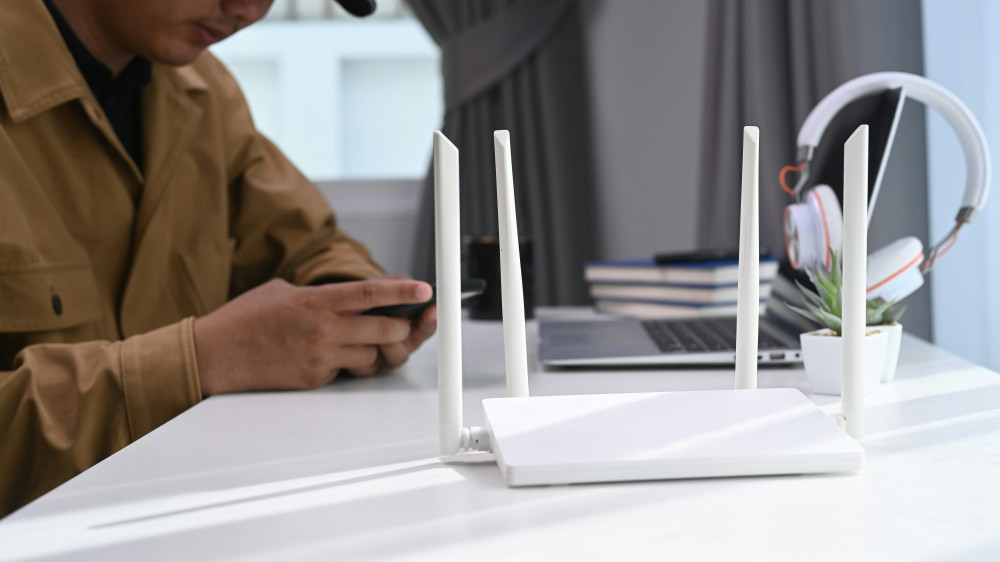
Even the best channel won’t help if your router is poorly placed. Position it centrally in your home, elevated, and in the open—not hidden behind furniture or inside a cabinet. Avoid placing it near metal objects, microwaves, or cordless phones, which can cause interference.
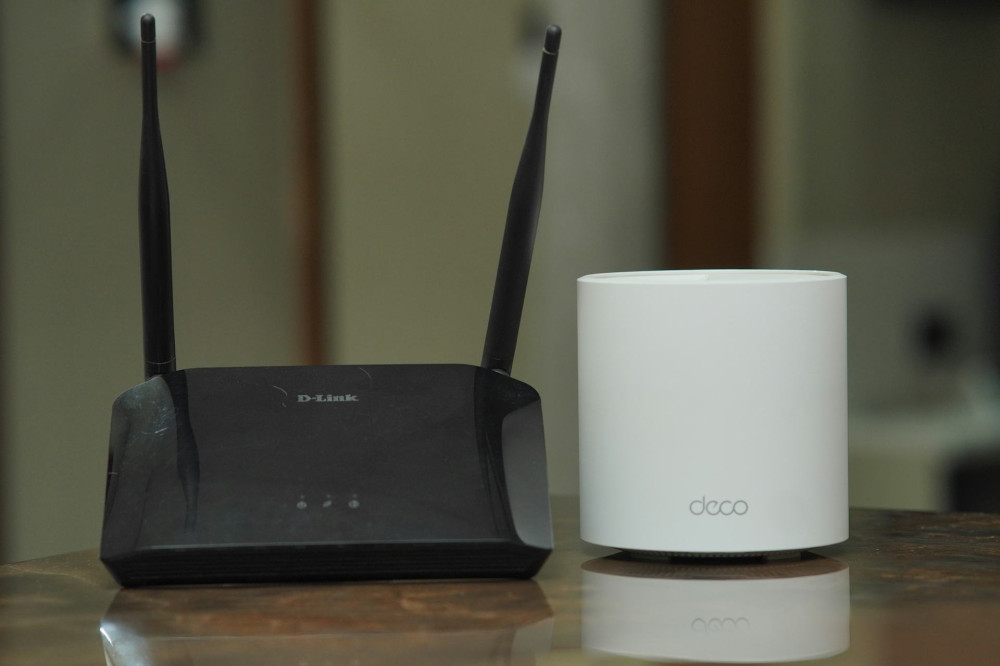
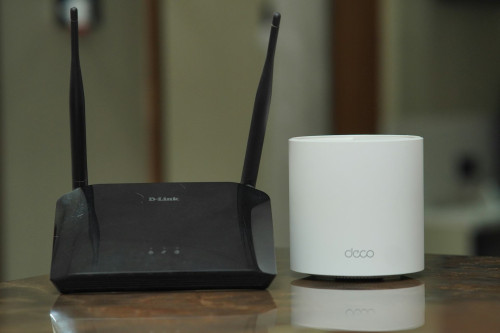
If your signal still doesn’t reach every room, consider a mesh Wi‑Fi system, which uses multiple units to spread coverage evenly throughout your home.
Keep Your Router Updated
Router manufacturers regularly release firmware updates that improve performance and security. Log in to your router’s control panel and check for updates. Installing the latest firmware can sometimes fix connection issues on its own.
Simple Steps for a Faster Network
Choosing the right Wi‑Fi channel and frequency takes only a few minutes but can make a noticeable difference in speed and reliability. Start by analyzing your network, switch to a less crowded channel, and place your router strategically. With the right settings, you’ll enjoy a faster, more stable, and less congested wireless connection—without upgrading your internet plan.
Læs også: